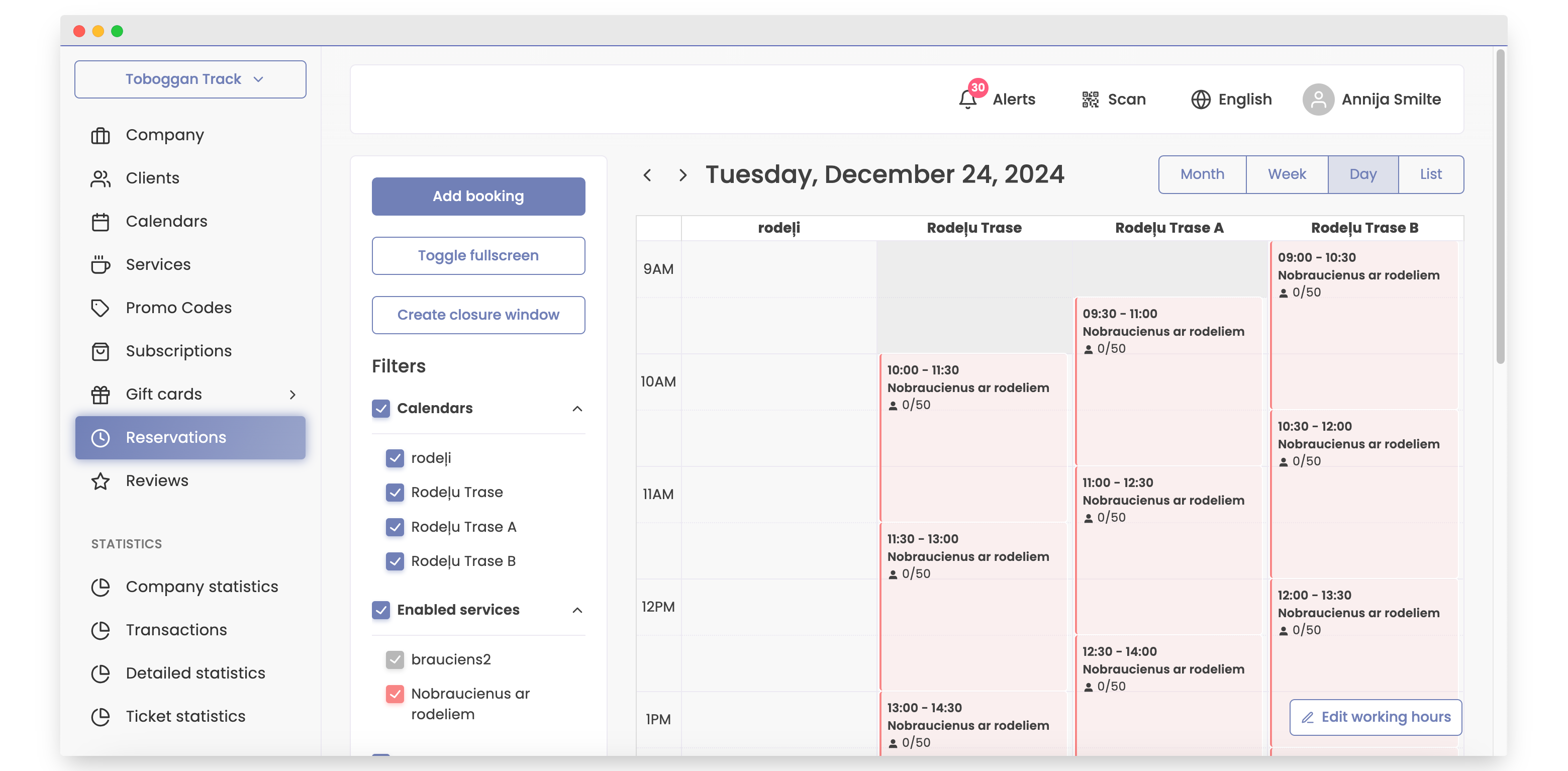
How to Create and Delete a Closure Window
In this tutorial, we will look into how to create a closure window if you need a free day, for example, holidays, and also how to delete a closure window if you accidentally created it for the wrong day.
How to Create a Closure Window
-
Open Bookla Portal.
-
Go to the "Reservations" section.
-
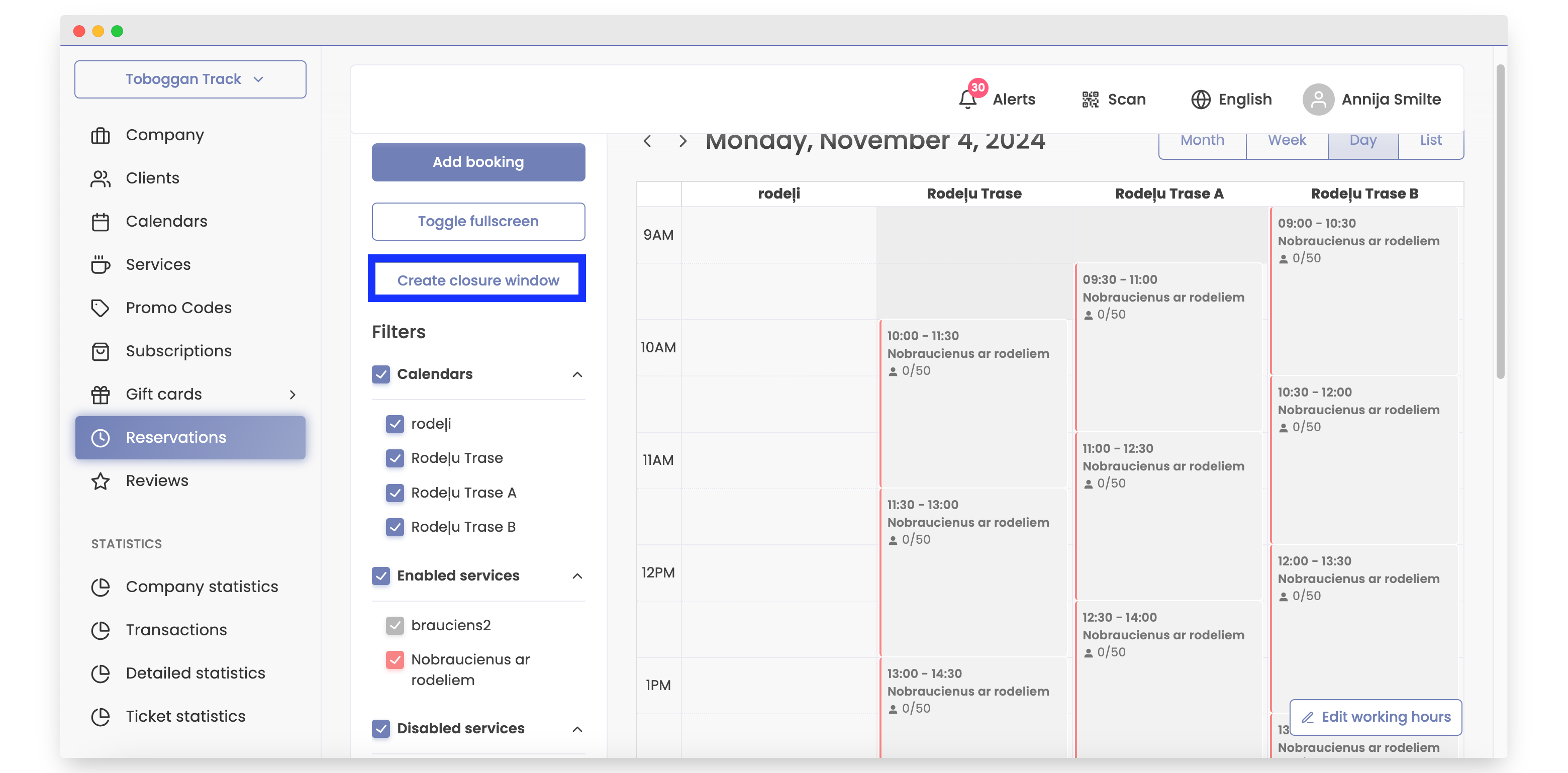
Click "Create Closure window."
-
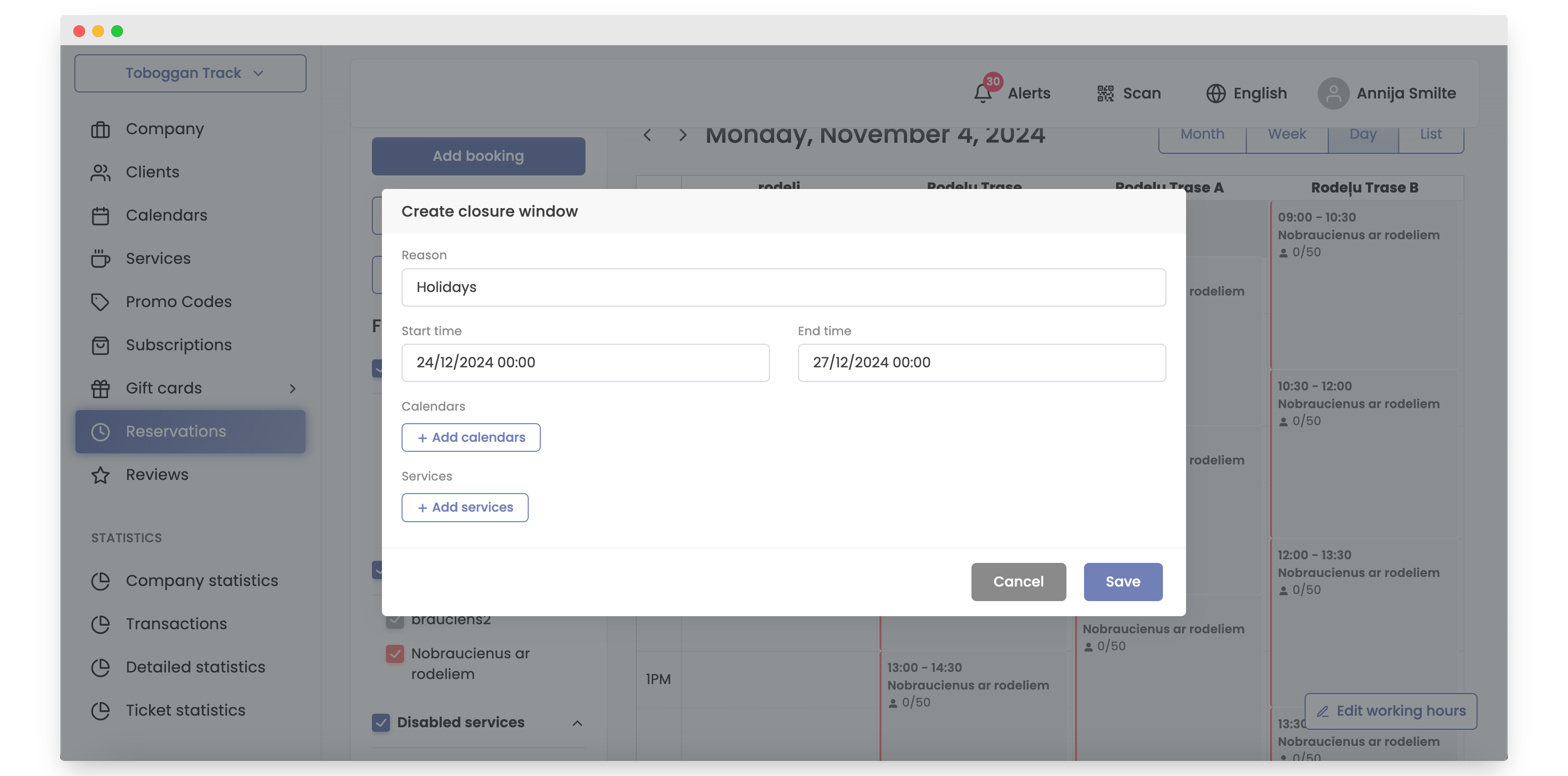
Enter the reason for the closure window, add the start time and end time. If it's for a specific calendar or service, choose which one. If you do not choose one, the closure window will apply to all calendars and services.
-
Click the "Save" button.
-
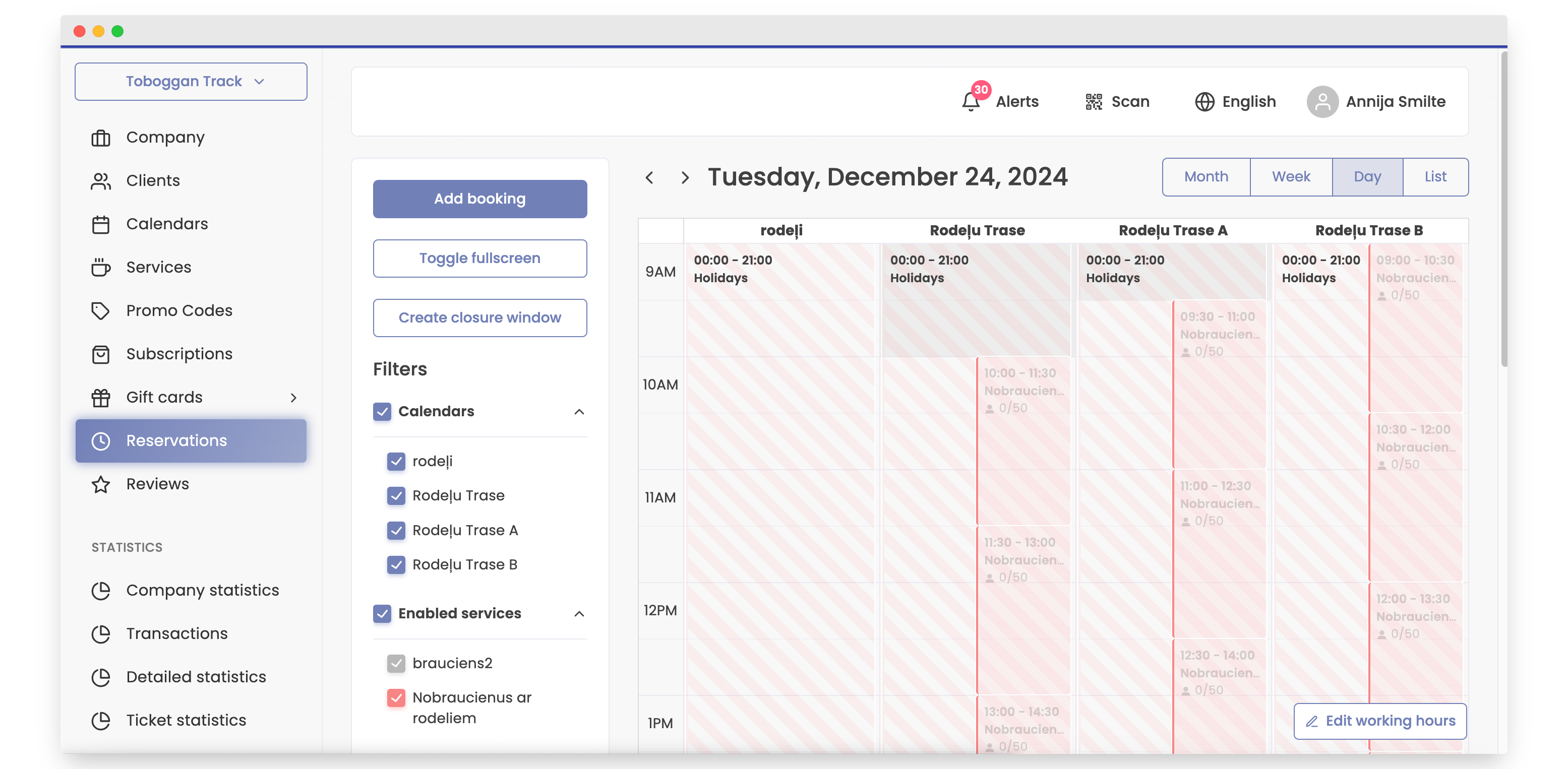
That's it! The closure window is created.
How to Delete a Closure Window
If you created a closure window but realize the start time or end time is wrong, follow these instructions to delete the closure window.
-
Open Bookla Portal.
-
Go to the "Reservations" section.
-
Find the date you created the closure window that needs to be deleted.
-
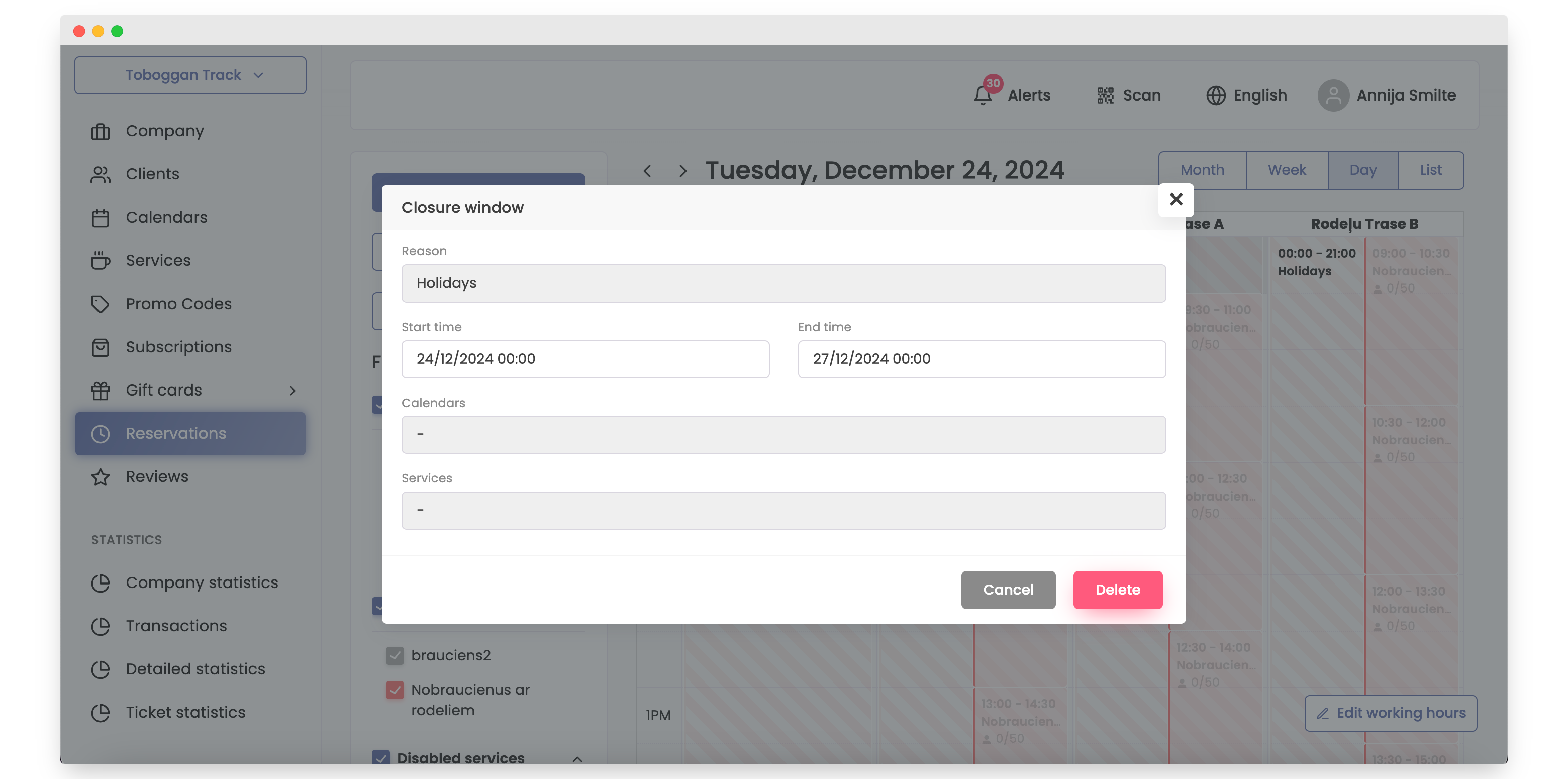
Click on the red stripes.
-
Click the "Delete" button.
-
Click the "Delete" button again.
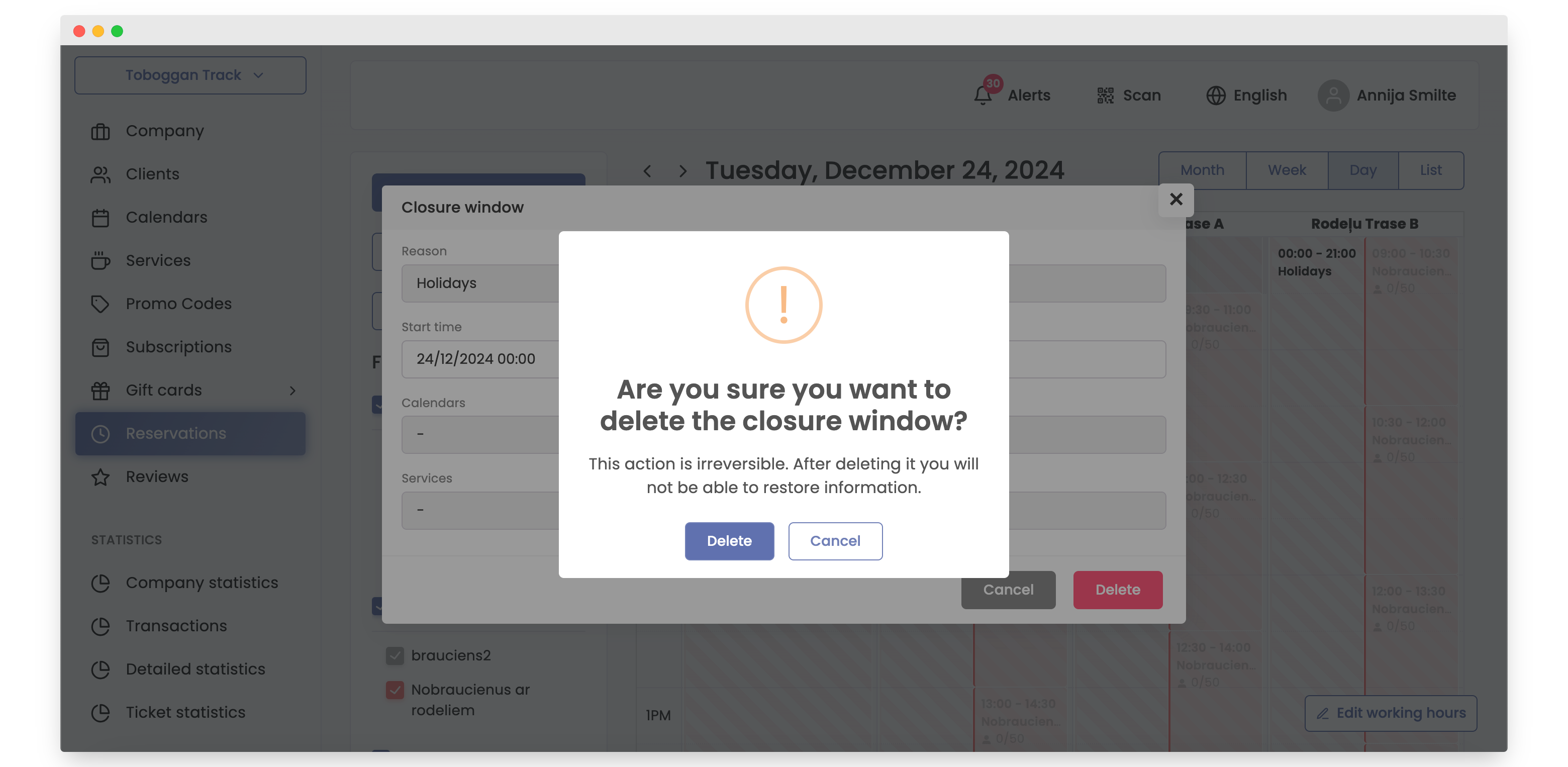
That's it! The closure window is deleted.