How to Add a Comment for Client's Reservation
In the Bookla Platform, you can add a comment for your client if needed.
There are two ways to do it.
The first one is from the "Clients" side if you know the exact client but not the exact time.
How to Do It
- Open Bookla Portal.
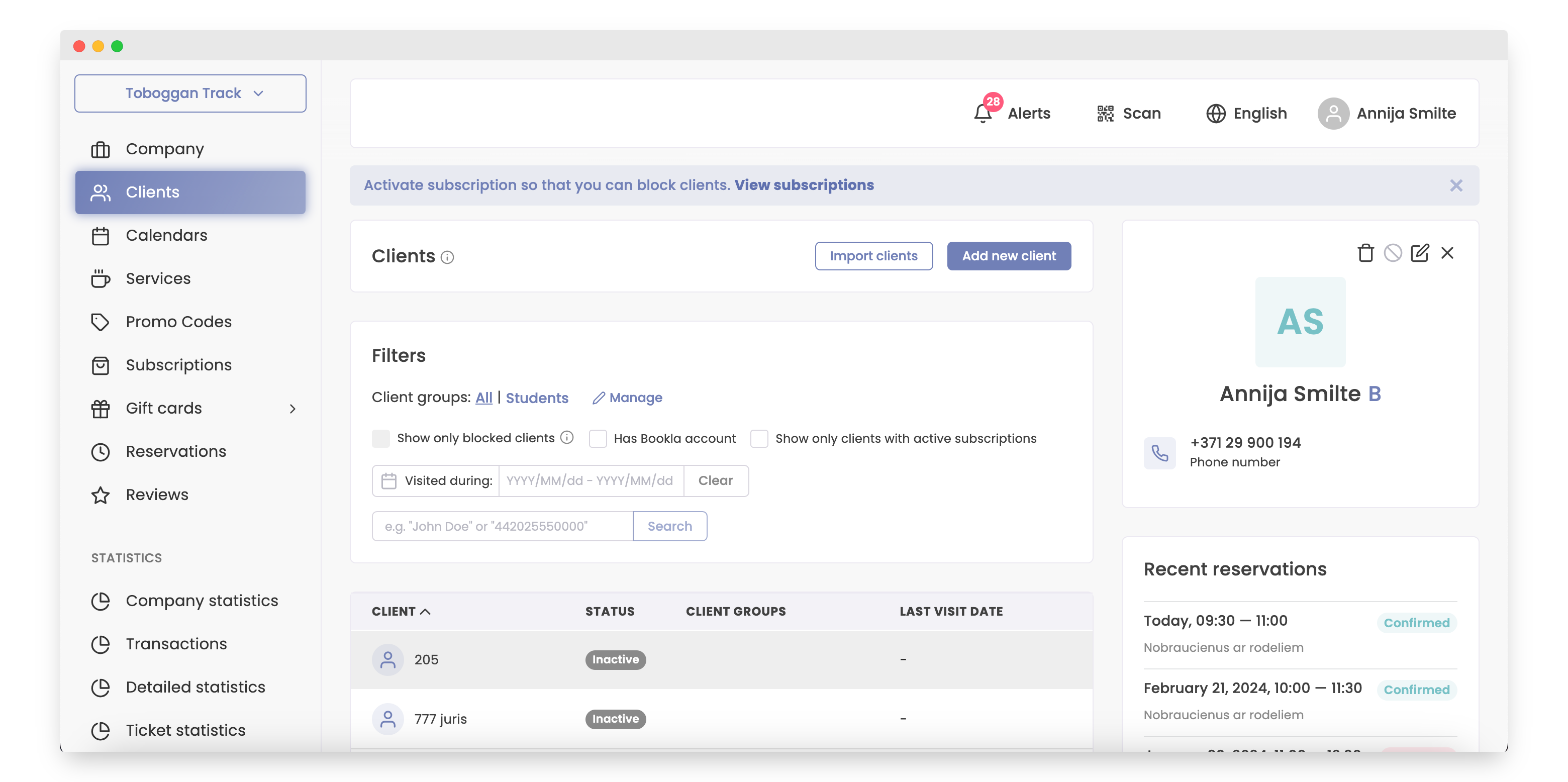
- Go to the "Clients" section.
- Click on the client for whom you want to add the comment.
- Click on the reservation.
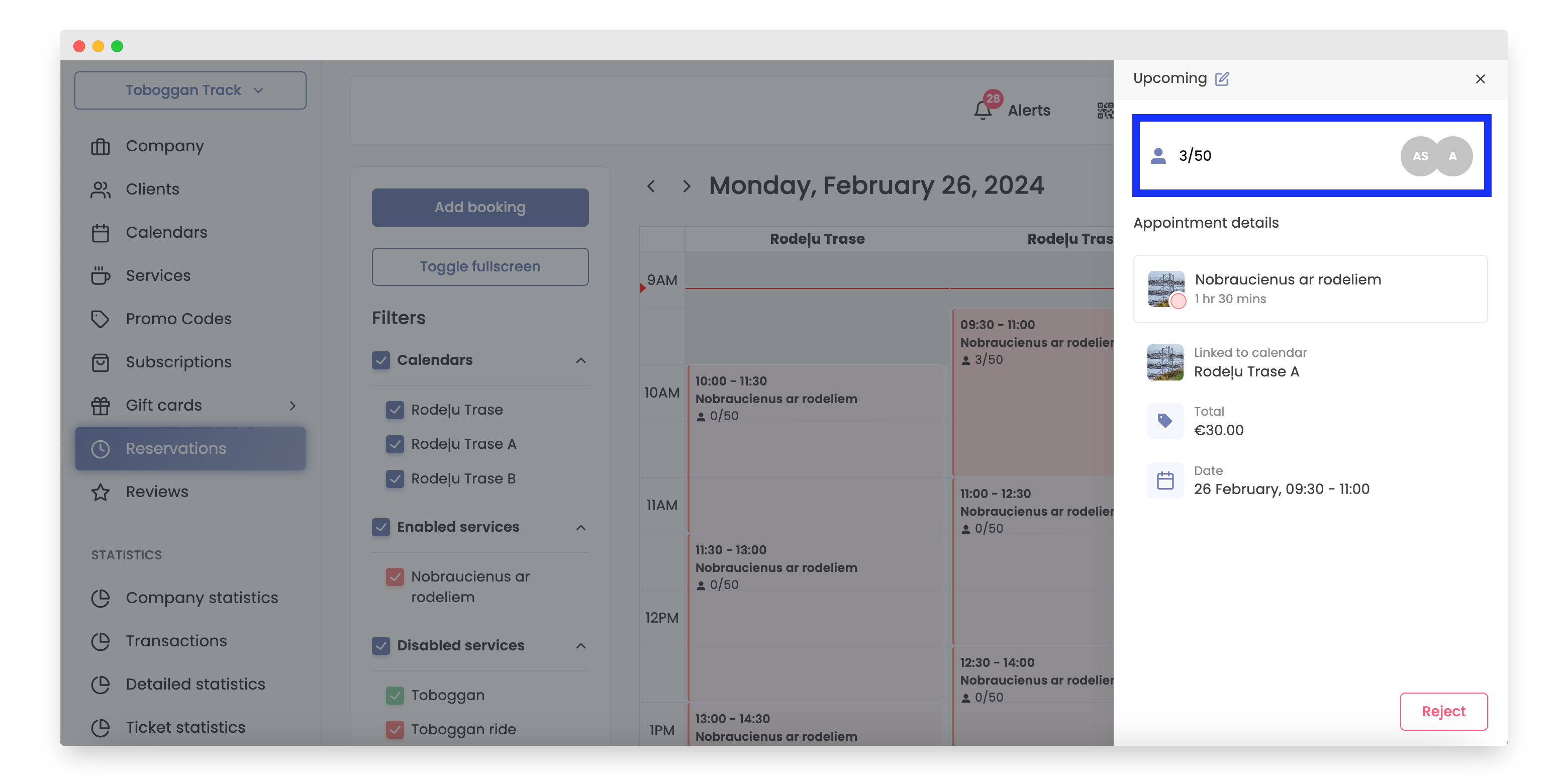
- Click on the client amount button.
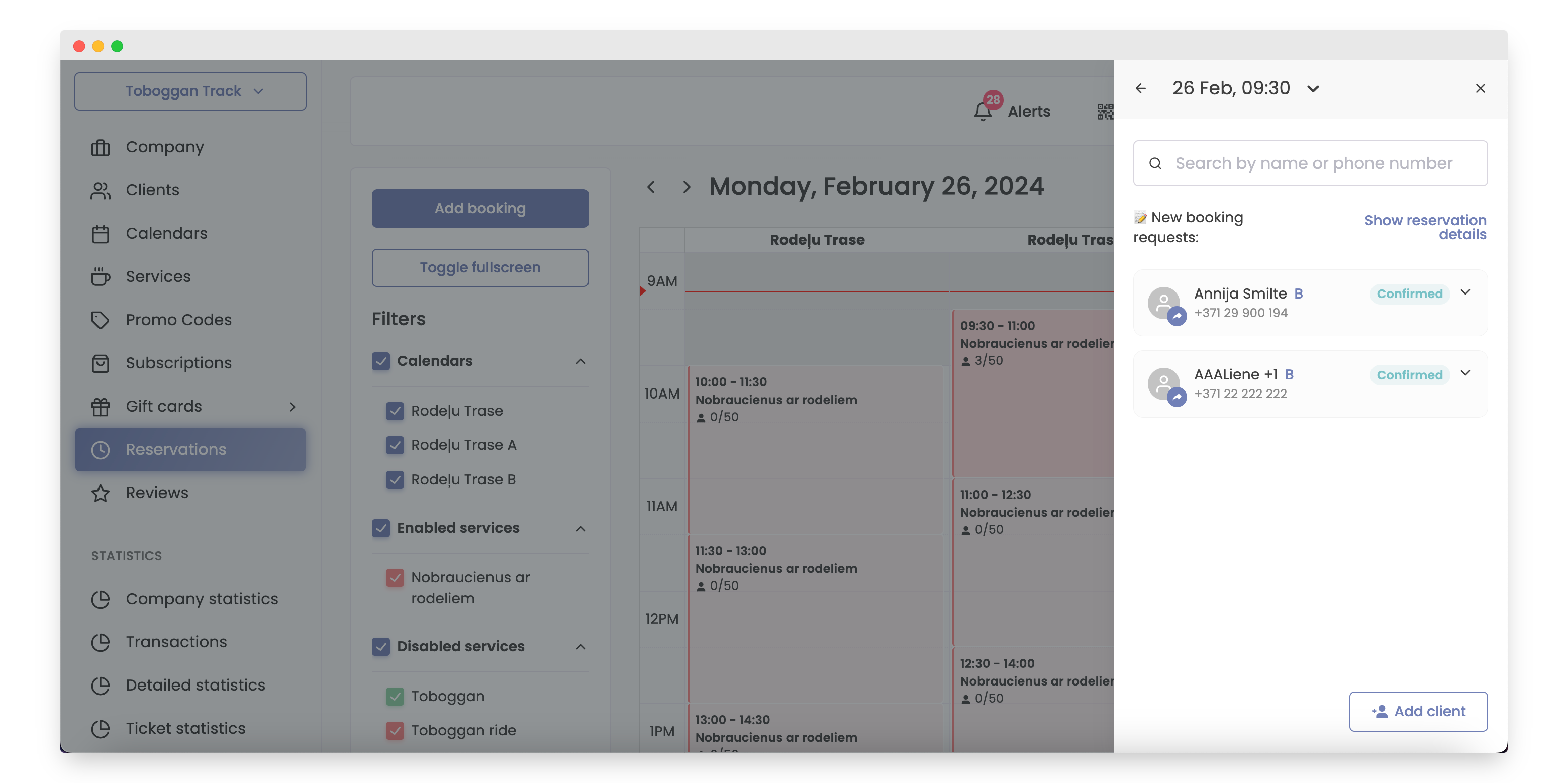
- Select the client.
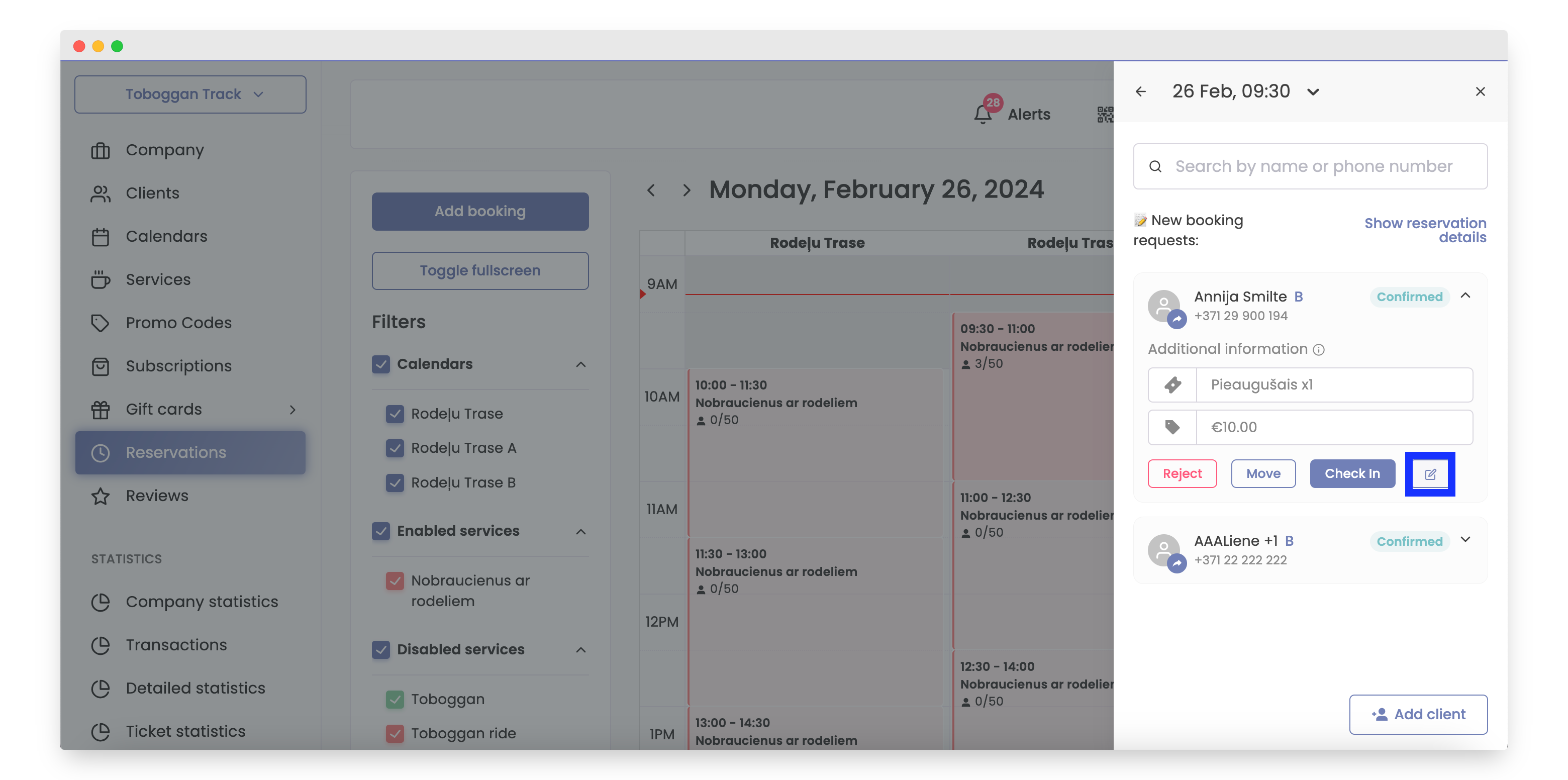
- Click on the edit button.
- Add your comment and click the Save button.
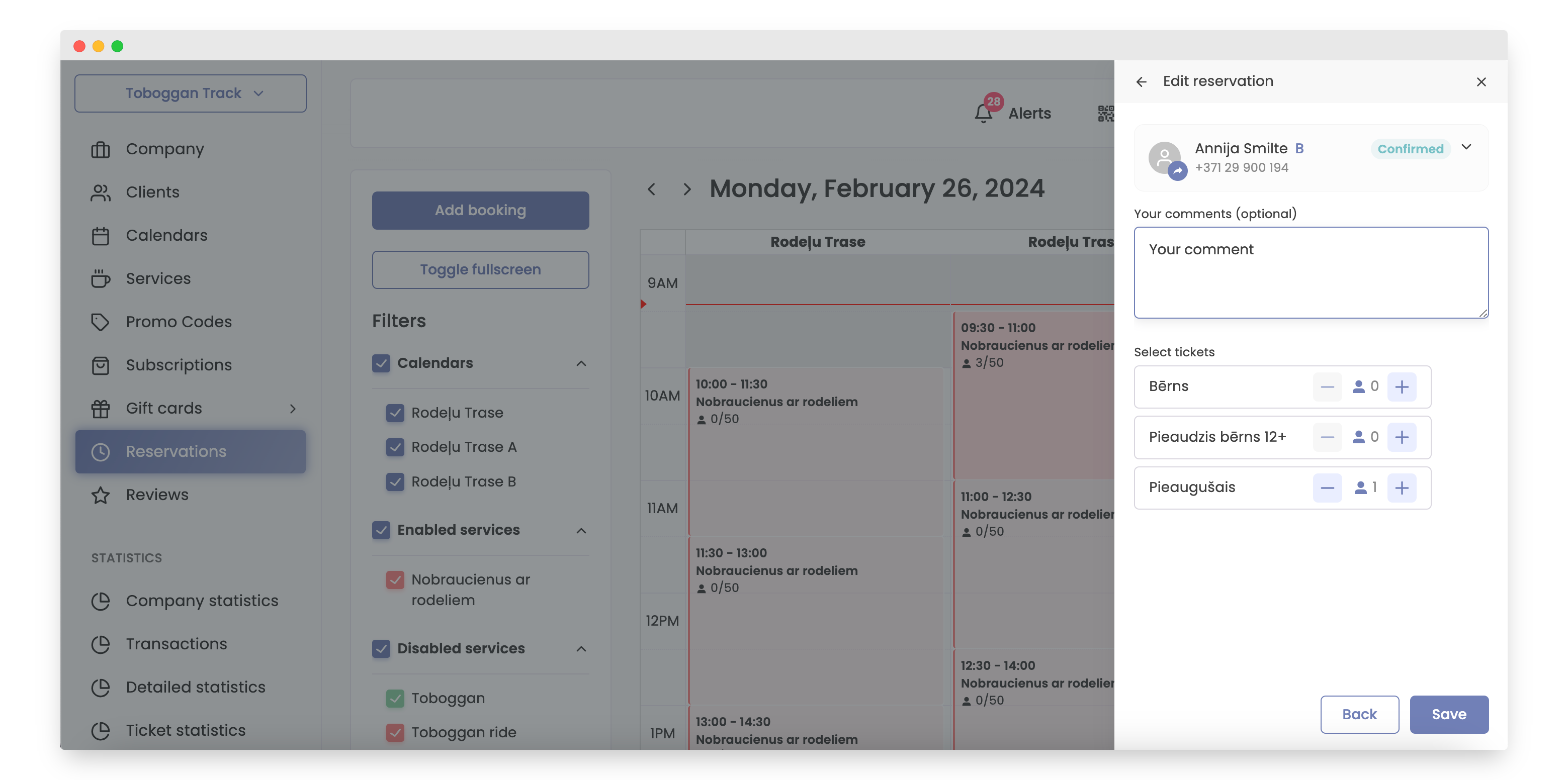
That's it, the comment has been added.
The second one is the best option if you know the exact time when you need to add the comment.
How to Do It
- Open Bookla Portal.
- Go to the "Reservations" section.
- Click on the reservation slot where the client you want to add a comment for is located.
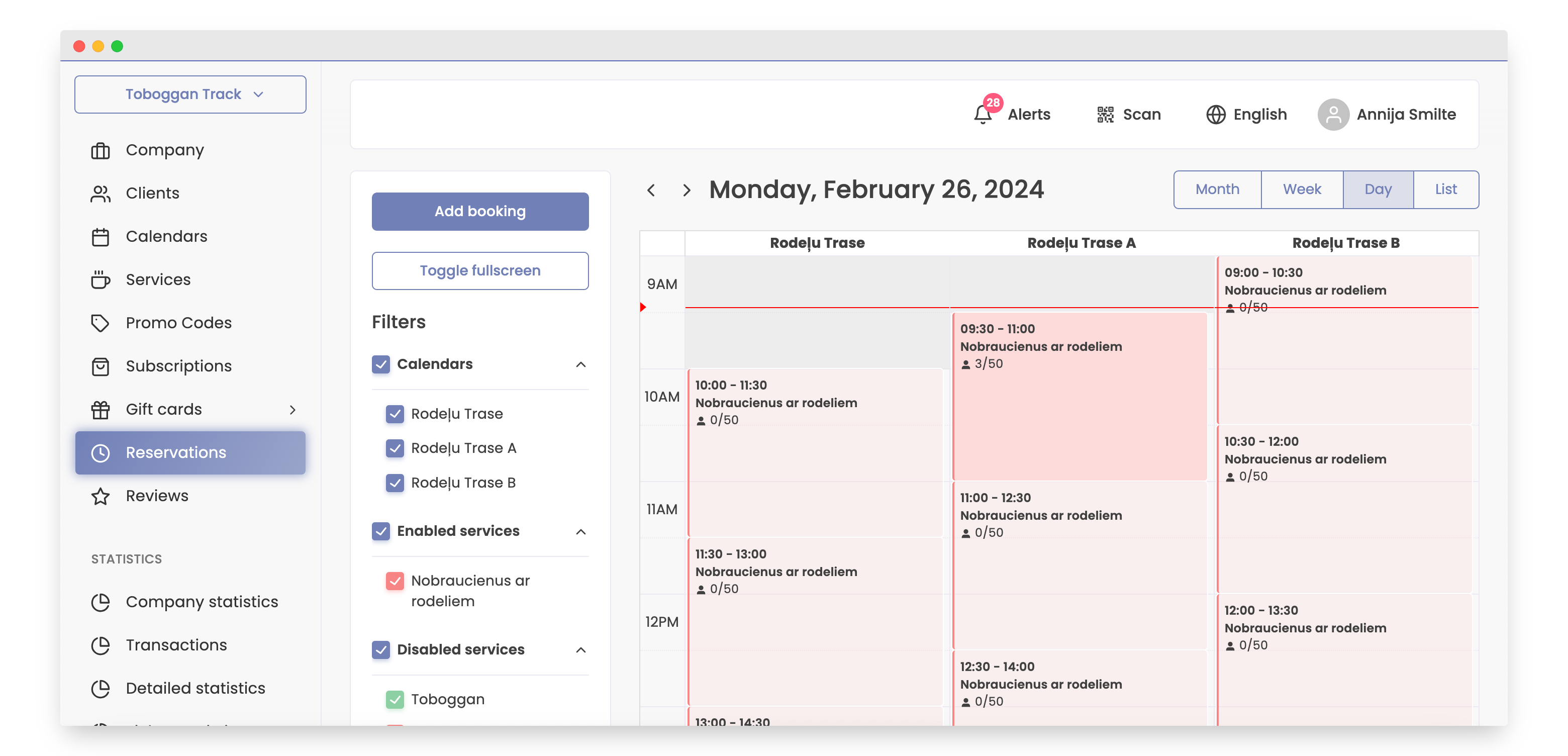
- Click on the client amount button.
- Select the client.
- Click on the edit button.
- Add your comment and click the Save button.
That's it, the comment has been added.