How to create a service based on working hours
Services are offerings that you can provide to your clients, which they will also be able to purchase. To create a reservation, you'll choose the specific calendar and service. Then, input details such as price, duration, date, and whether it's a recurring booking.
How to do it:
- Visit portal.bookla.com and go to the section "Services."
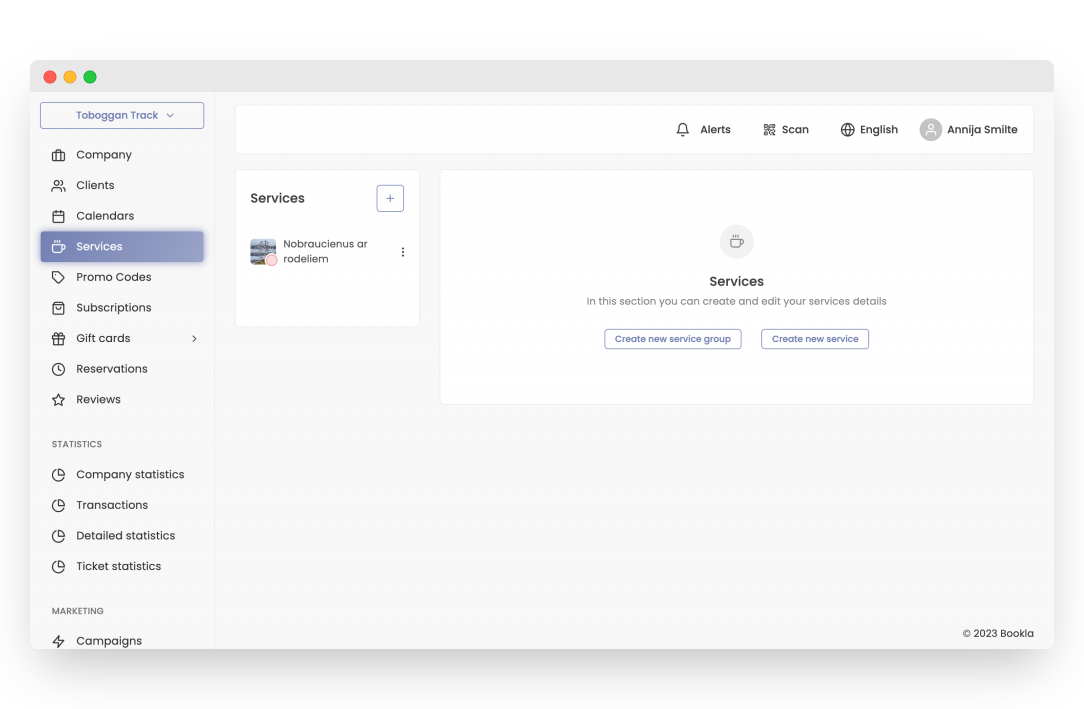
- Click on the button "+" or "Create new service."
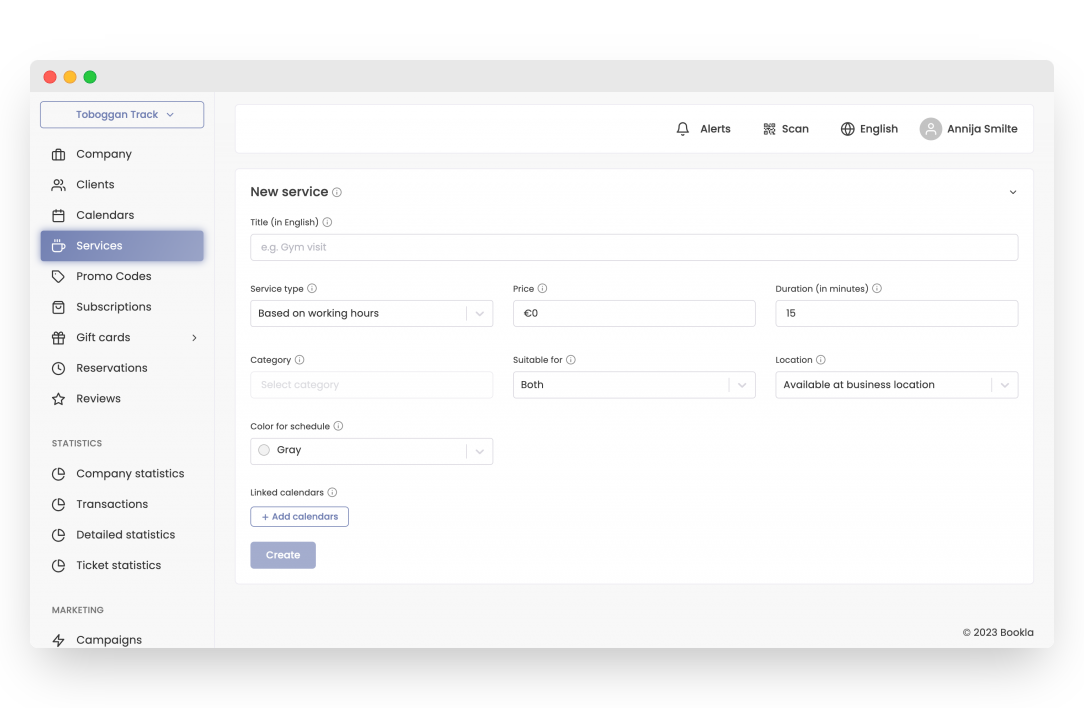
- Specify:
- Title (in English, later you can create translations)
- Service type (it must match the calendar type)
- Price
- Duration (in minutes)
- Category
- Specify:
- Choose who the service is suitable for (women, men, or both).
- Indicate location where the service will be provided.
- Choose a color for schedule (used to mark reservations in the application).
- Select a previously created calendar to link with the service.
- Click the "Create" button.
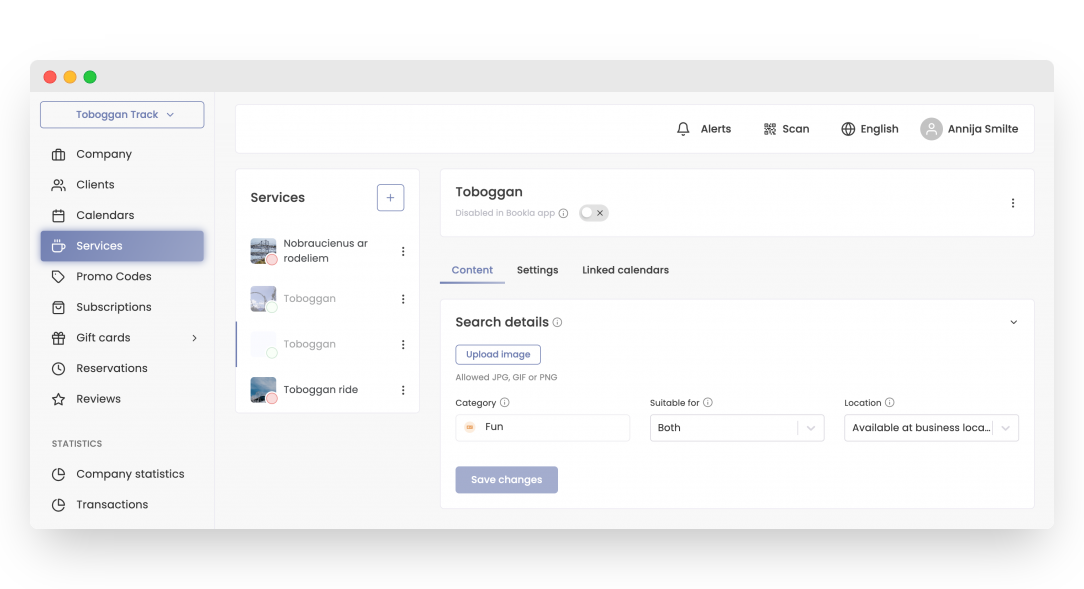
- Enter search information:
- Click "Upload Image" to add an image to the service. Services cannot be activated without an image.
- If necessary, change the service category and the service delivery location.
- Click "Save Changes".
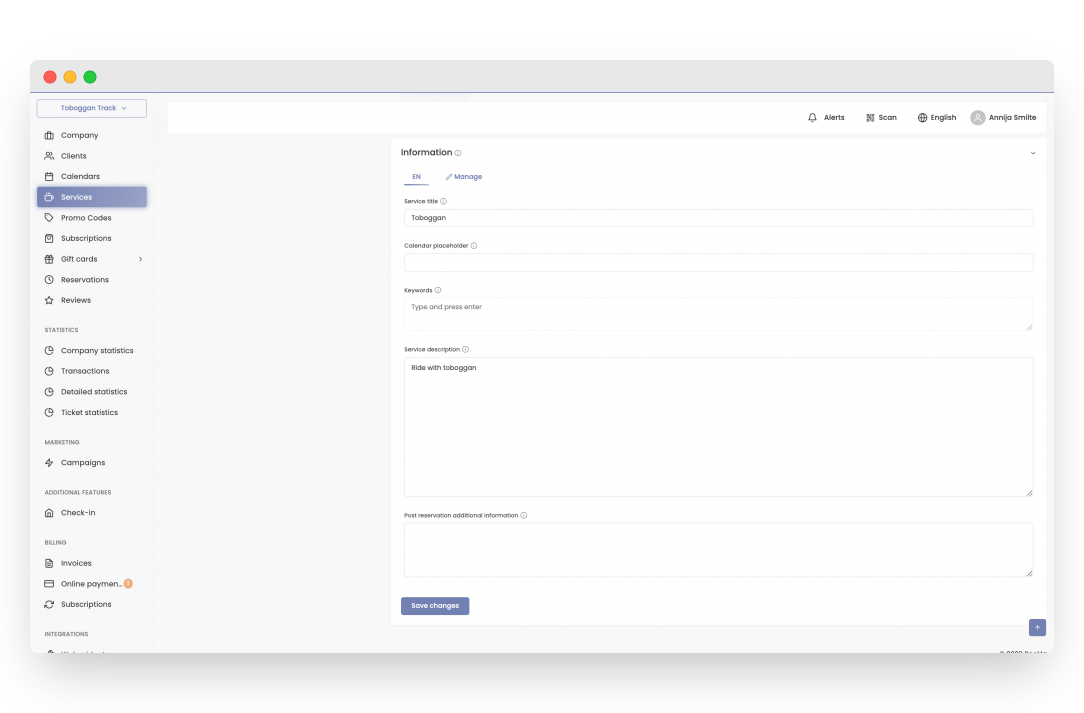
- Enter information about the service:
-
Specify the service name in the respective language.
-
Add a calendar placeholder and keywords (not mandatory).
-
Enter the service description.
-
Optionally, add additional text for customer confirmation in the email.
- To add translations:
- Click on "Manage" and choose the desired languages.
- Follow the instructions from point 7 and adjust the data accordingly.
-
Save the made changes by clicking the "Save Changes" button.
-
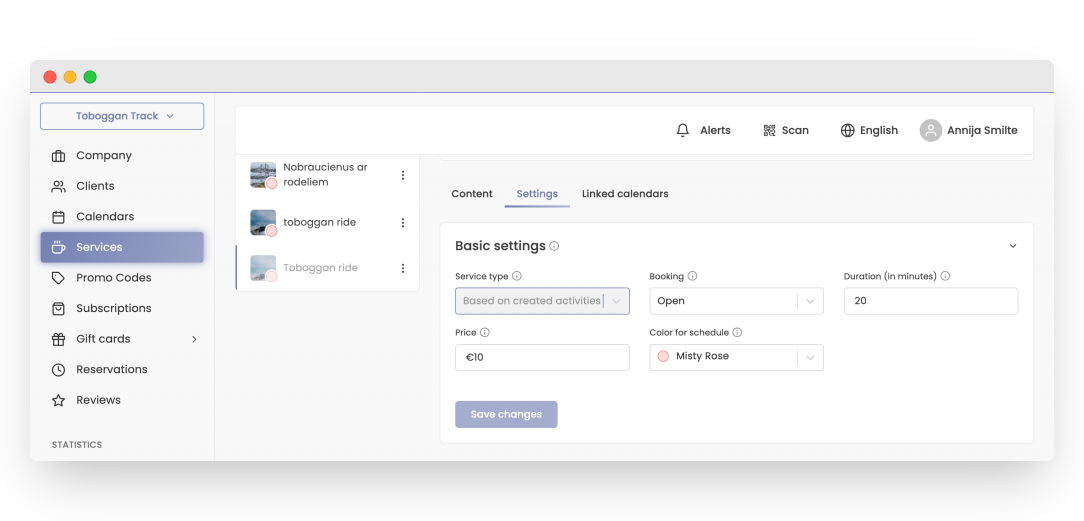
Go to the "Settings" section.
-
Make necessary changes in the basic settings if required.
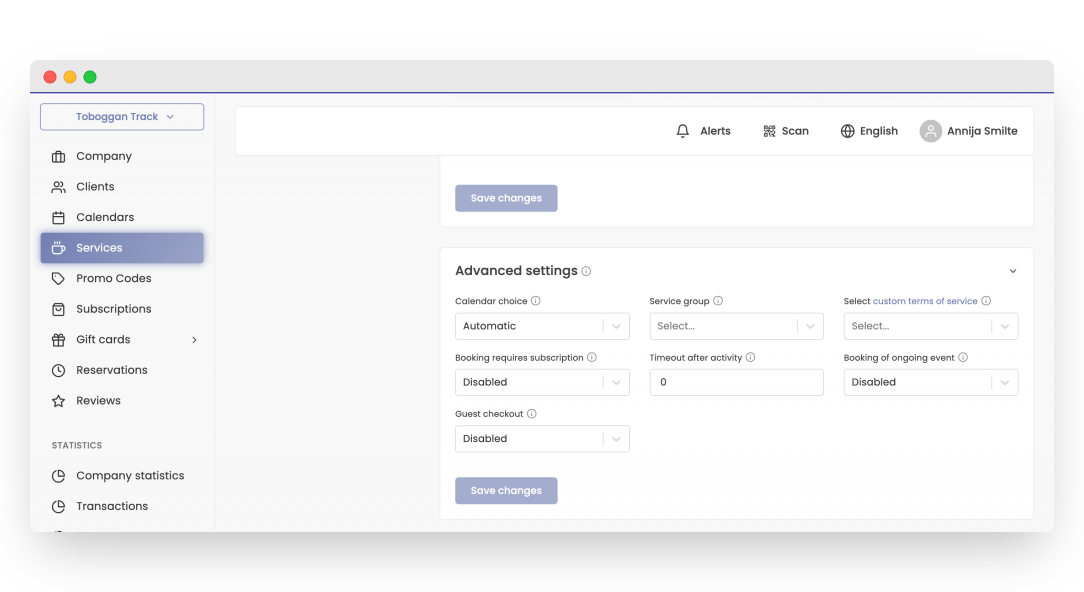
- Specify advanced details:
- Choose the type of calendar.
- Add the service to a specific service group if desired.
- If necessary, add custom terms of service.
- Choose whether customers need a subscription for reservations.
- Specify the timeout after the activity (in minutes).
- Choose whether clients can book ongoing activities.
- Indicate whether clients can apply for this service without registering.
- To save the changes made, click "Save Changes".
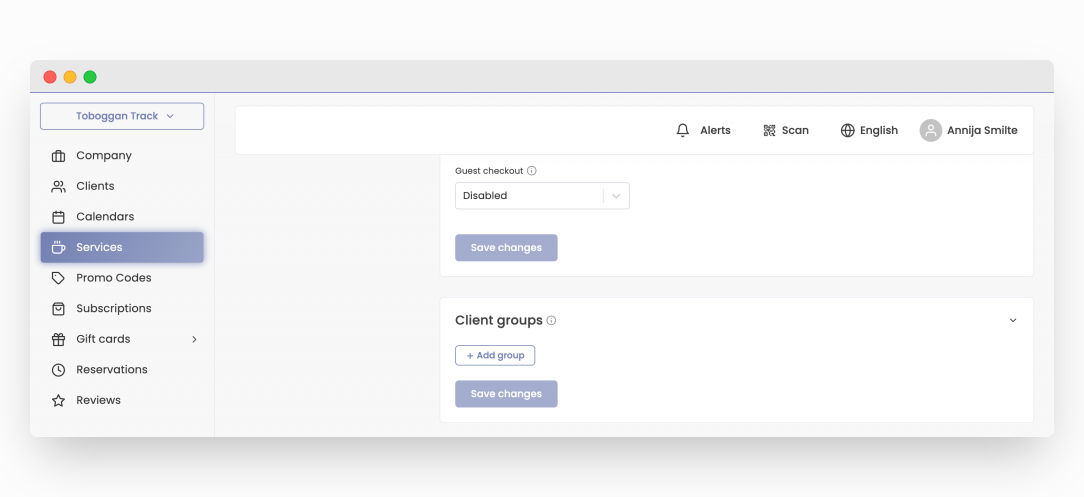
- Add the service to customer groups if desired.
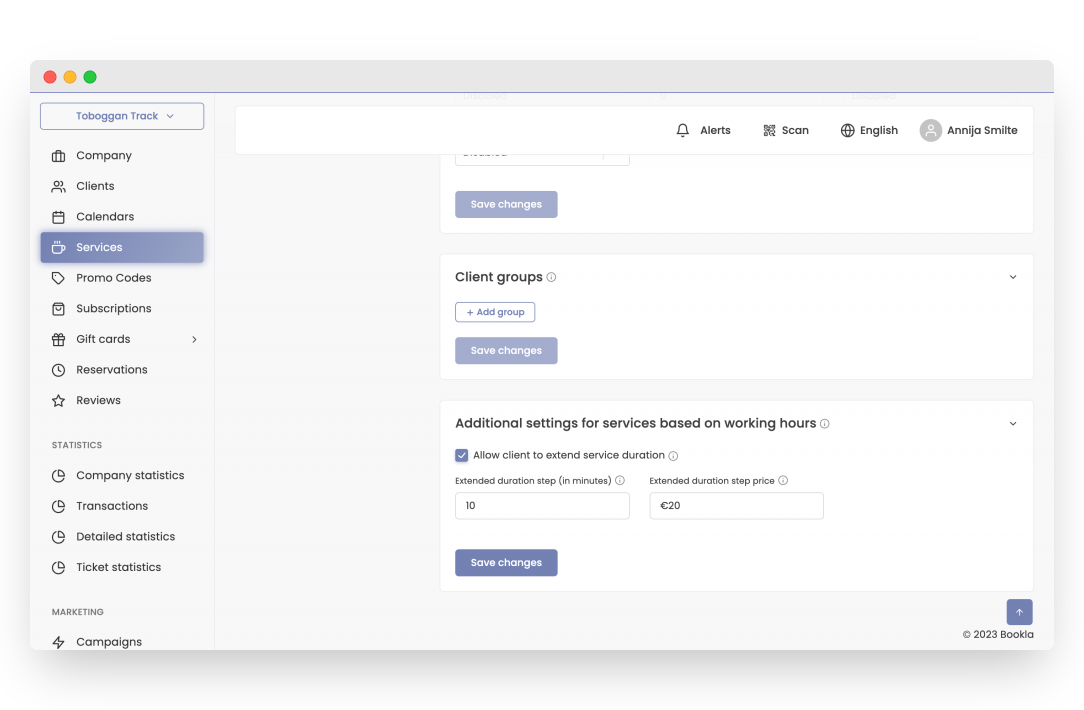
- If you want to specify the service duration related to working hours, proceed as follows:
- Scroll down to the "Additional Settings for Services Based on Working Hours" section.
- If necessary, check the box "Allow clients to extend the service duration".
- Specify an additional time step and its associated cost
- Click "Save Changes".
- Scroll up and activate the service on the Bookla platform by clicking the respective button.
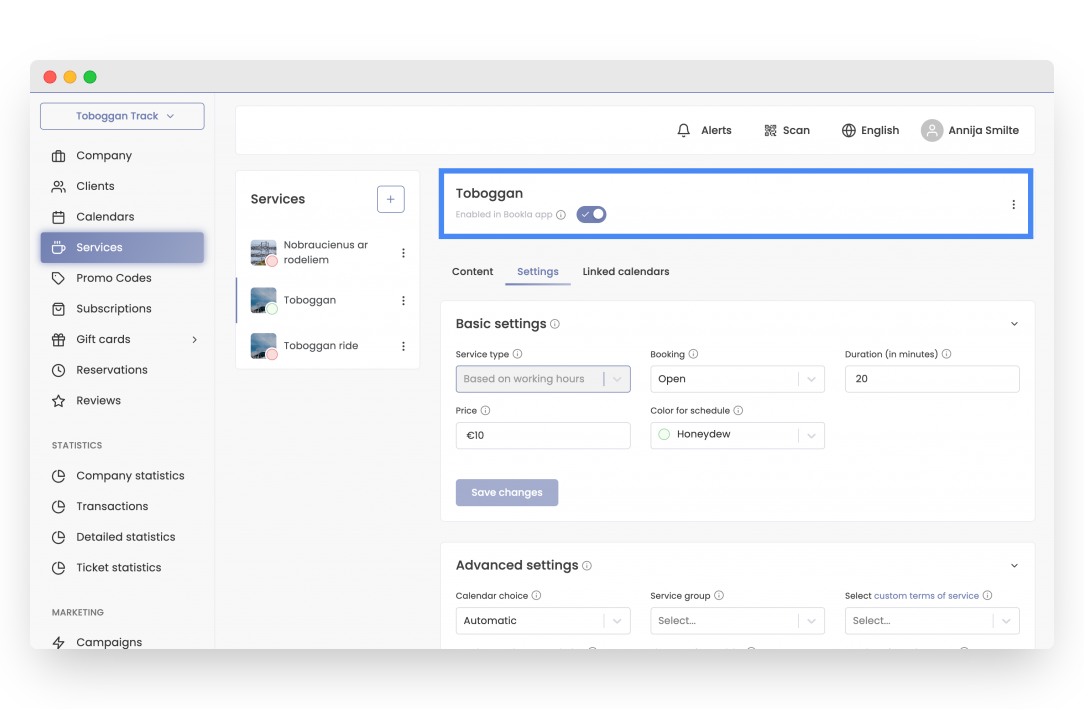
After these steps, your service based on working hours has been successfully created!
If you want to learn how to create a calendar, Click here.